Stem EQ
Overview
Stem EQ gives you the ability to EQ separated elements of your mix - Vocals, Bass, Drums, and Other instruments - directly from a stereo bounce. Instead of making broad changes to the entire mix, you can isolate and shape individual stems to achieve a more balanced master. Use Stem EQ to fix issues like vocals that feel buried, drums that dominate the mix, or instruments that need more presence without going back to the original session.
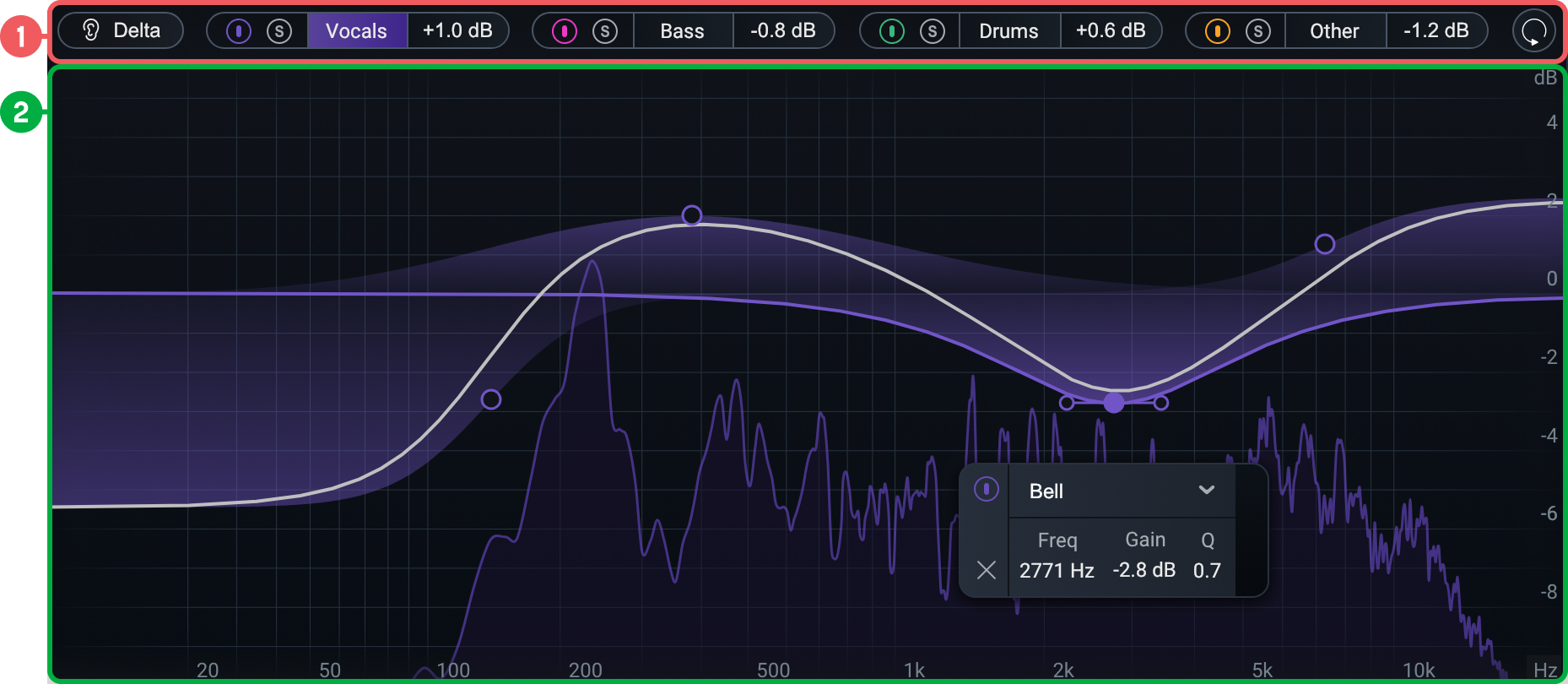
Stem EQ includes the following sections:
 |
Module Header
The Stem EQ Module Header has the following elements:
 |
Delta: Monitors the difference in the signal before and after the Stem EQ module.
Stem Controls: Each Stem - Vocals, Bass, Drums, and Other - includes the following controls:
Enable/disable: Click the power button to disable the EQ and Gain processing on that stem.
Solo: Isolates the selected stem so you can hear the results of source separation and any applied processing. Multiple stems can be soloed at once (for example, solo Bass, Drums, and Other to create an instrumental version).
Stem View Selector: Click the stem name to switch the EQ view. Selecting any control within the Stem Controls will also update the active Stem View.
Gain: Adjusts the level of the selected stem. Click and drag the Gain value to change it, or double-click to enter a precise value.
Reset: Returns all module controls to their default value.
EQ Controls
There are multiple ways to create an EQ node:
Hover over the EQ curve. A + button will appear. Click and drag to create a node.
Double-click anywhere in the EQ display to add a node.
If you create a node below 100 Hz or above 8 kHz, a shelf filter is added. Nodes created between these frequencies default to a bell filter.
Once created, each EQ node provides the following controls:
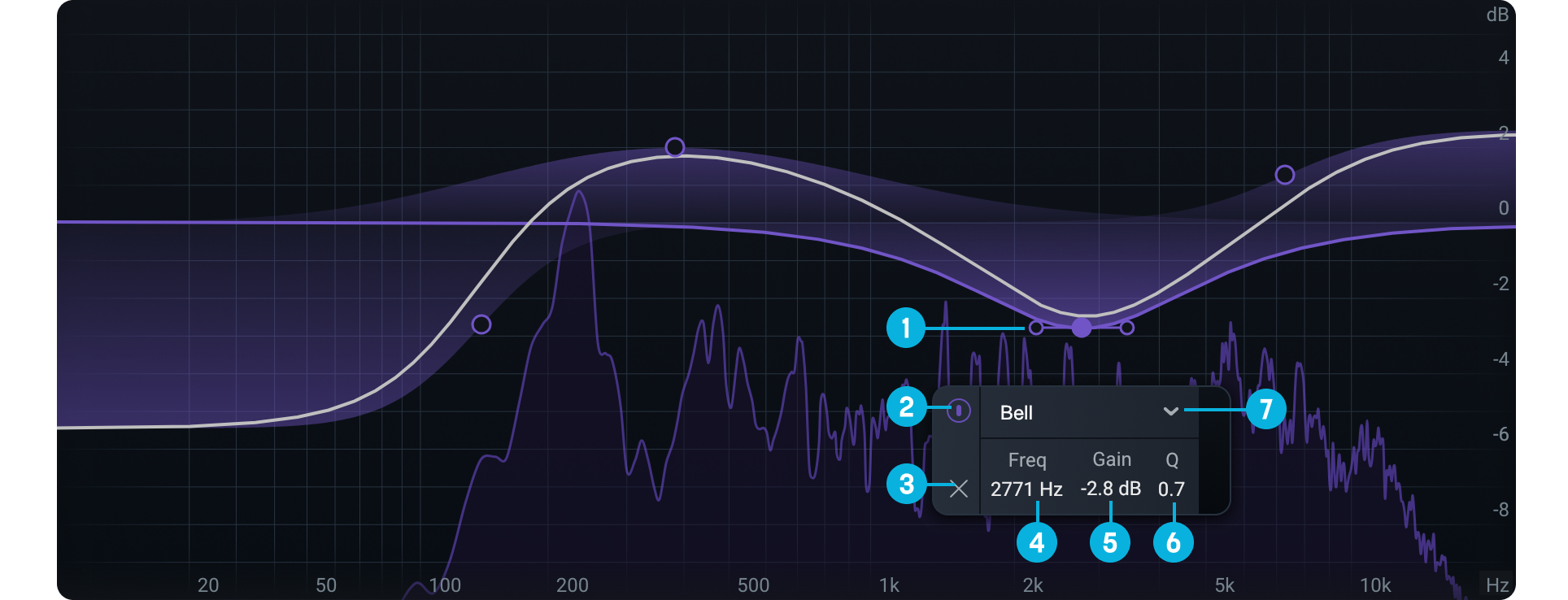 |
EQ Node: Click and drag to adjust frequency and gain. Use the side handles to adjust filter Q.
Enable/disable: Toggles the selected node on or off.
Delete: Removes the selected node.
Frequency: Drag to adjust the frequency, or double-click to enter a value manually.
Gain: Drag to adjust gain, or double-click to enter a value manually.
Q: Drag to adjust the Q value, or double-click to enter a value manually.
Filter menu: Selects the filter shape for the associated band. The filter shapes are organized into sub-menus based on filter type and usage.
Bell: These filters can be used to boost or cut a specific center frequency level (Peak type filters). The following filter shapes are included in this menu:
Bell: Smoothly boosts or cuts an adjustable region around a specific frequency.
Proportional Q: Unique filter that varies shape in proportion to the amount of boost or cut applied. As a cut or boost is increased further away from center of the EQ curve, the shape tightens for more precision.
Band Shelf: Bell filter with wide, flat top. Useful for boosting or attenuating a block of frequencies.
Low Shelf and High Shelf: These filters can be used to boost or cut the frequency content above or below a specified frequency (Shelf type filters). The following filter shapes are included in the sub-menu:
Analog: Efficient shelf filter for simple boosts and cuts.
Baxandall: Gentle shelf filters. Modeled after the Baxandall EQ, with the addition of adjustable frequency.
Vintage: Inspired by the renowned Pultec analog equalizer. Exhibits a complementary frequency dip, creating a complex slope with one node.
Resonant: Exhibits a complimentary resonance at both ends of the filter slope creating a complex shape with one node.
Lowpass and Highpass: These filters can be used to attenuate frequency content that is below (for highpass) or above (for lowpass) a specified cutoff frequency (Pass type filters). The following filter shapes are included in this sub-menu:
Flat: Butterworth filter; optimized for maximum flatness without ripple or resonance in the passband or stopband (stability).
Resonant: Filter equipped with a resonance control to emphasize the cutoff frequency with positive gain. Boosts content at the cutoff frequency to add character and emphasize the lowest or highest part of the signal.
Brickwall: Elliptic filters. Optimized for steepness with minimal ripple in the passband and stopband.