Getting Started
Common Terms
The following terms are used throughout this manual to specify different types of Ozone plug-ins:
Mothership plug-in: This term is used to describe to the main Ozone plug-in that includes multiple processing modules, a customizable signal chain, Master Assistant, Stem Focus, Referencing, Codec Preview, and Dither.
Component plug-in: This term is used to describe the different Ozone plug-ins that include a single Ozone processing module.
The following Ozone modules are available as component plug-ins: Bass Control, Clarity, Dynamic EQ, Dynamics, Equalizer, Exciter, Imager, Impact, Low End Focus, Master Rebalance, Match EQ, Maximizer, Spectral Shaper, Stabilizer, Stem EQ, Unlimiter, Vintage Compressor, Vintage EQ, Vintage Limiter, and Vintage Tape.
Note
Check out the Glossary chapter for additional information about terms used throughout this manual.
Quick Start Suggestions
Not sure where to start? Try using presets or Master Assistant to get going quickly with Ozone.
Using Presets
Ozone includes a wide variety of factory presets to help get you started on your master.
In the Ozone mothership plug-in, you can try out different mastering chains using global presets. Global presets will modify the signal chain and the settings of each module included in the chain. You can use module presets to audition different settings in an individual module. You can open the module preset manager by clicking on the preset button in a module’s tile in the signal chain.
In the Ozone component plug-ins, you can open the preset manager by clicking the presets button in the plug-in header area. The preset files used by Ozone component plug-ins are the same files that are used by the module preset managers in the Ozone mothership plug-in.
Using Master Assistant
The intelligent Master Assistant feature allows you to quickly to develop a starting point for your master. Master Assistant is only available in the Ozone mothership plug-in. Click on the Master Assistant button in the mothership plug-in header area to open the Master Assistant setup panel. Check out the Master Assistant chapter to learn more.
Navigating the Plug-in Interface
The Ozone plug-in interface is divided into the following main sections:
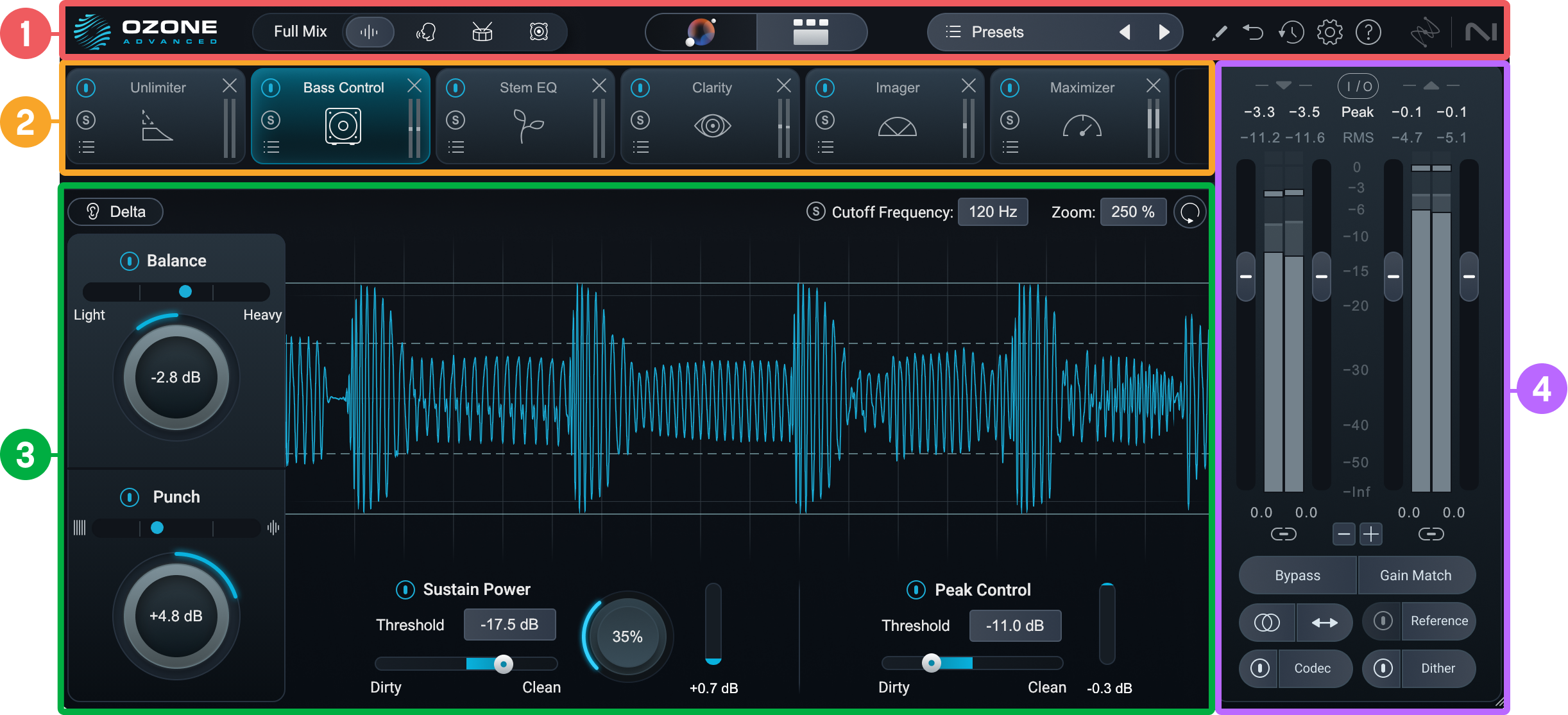 |
Global Header: Includes Stem Focus (mothership plug-in only), Master Assistant(mothership plug-in only), Presets, IPC instance name, Undo History, Options, and Help.
Signal Chain: Adjust the contents and order of the processing chain.
Module Interface: Controls and meters associated with a specific processing module.
I/O Panel: I/O (Input/Output) gain and metering, global bypass, and a number of auditioning features.
Note
See the General Controls chapter for more information about the controls included in the main areas of the Ozone interface.
Signal Flow in Ozone
The following diagram outlines the high-level signal flow in the Ozone mothership plug-in.
 |
The Ozone mothership plug-in includes a customizable signal chain. By default no modules are included in the signal chain.
Plug-in Feature Differences
There are a few features that will only appear in the Ozone mothership plug-in and/or in select Ozone component plug-ins. The following table outlines features that are only available in specific Ozone plug-ins:
Feature | Available in |
|---|---|
Ozone mothership plug-in only | |
Ozone mothership plug-in only | |
Ozone mothership plug-in only | |
Ozone mothership plug-in only | |
Ozone mothership plug-in only | |
Ozone mothership plug-in Ozone Maximizer component plug-in | |
I/O Panel: Sum to Mono and Swap Channels | Ozone mothership plug-in Ozone Imager component plug-in |
Tips for Optimizing Performance
There are a number of factors that can affect performance of an individual plug-in or application and there is a chance you may run into performance issues from time to time. Here are some adjustments you can make to help mitigate performance issues you might encounter:
Remove any modules you are not using from the signal chain.
Try increasing the Buffer Size setting in your DAW/NLE, if possible.
If using the Ozone Equalizer in Digital mode: Try adjusting the EQ buffer size in the Options menu for optimal performance.
If using the Digital crossover type in any multiband module: Try adjusting the Crossover Buffer Size in the Options menu.
If possible, try reducing the number of bands enabled in any of the multiband modules.
If possible, try using the Stereo channel processing mode rather than Mid/Side, Left/Right, or Transient/Sustain.