Impact
Overview
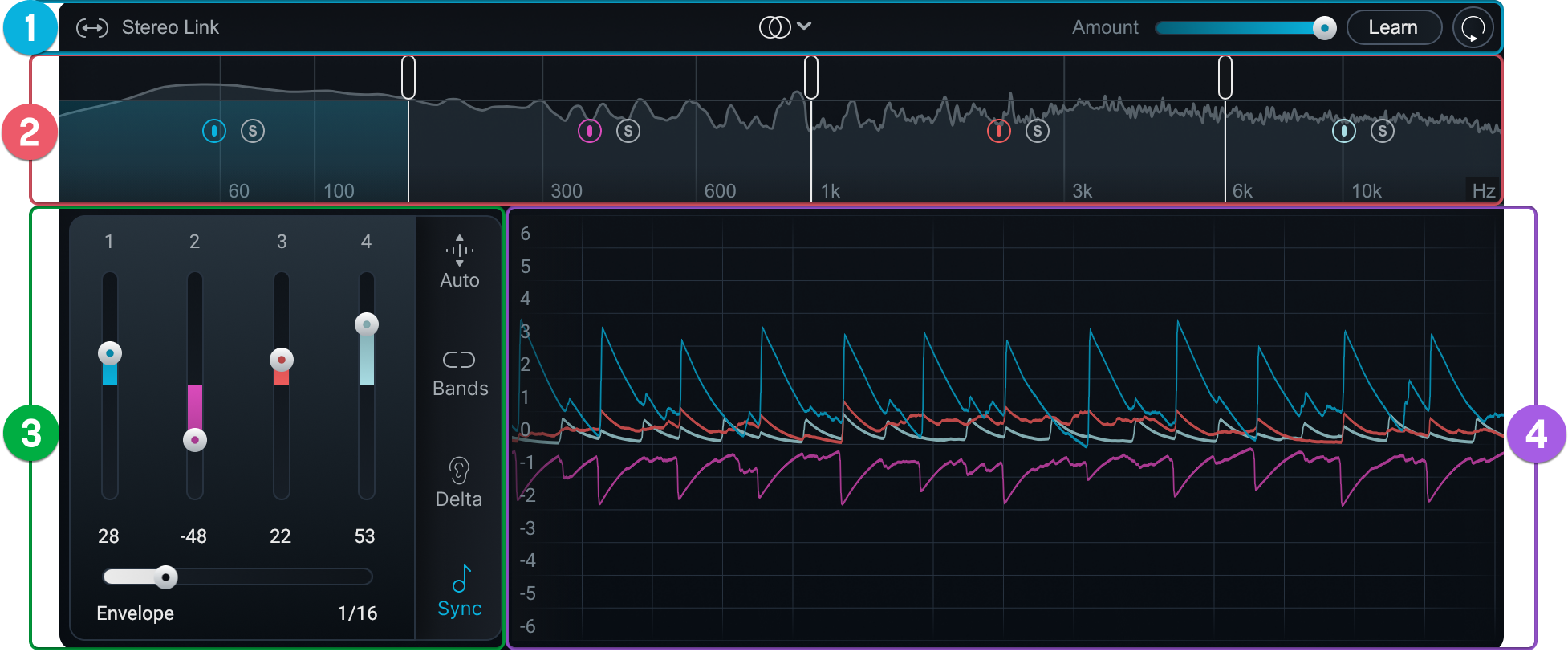
The Impact module directly controls the microdynamics of a signal, enabling dynamic range expansion and compression with a single, intuitive control.
 |
Module Header
The Impact module header includes the following controls:
 |
Stereo Link: When enabled, Impact will apply the same adjustment to the left and right channels based on the microdynamics of the mid signal. In the default, unlinked state, Impact will adjust the microdynamics of mix elements in their specific location in the stereo field.
Channel Processing Modes: Selects the channel processing mode used by the Impact module.
Impact supports Stereo and Mid/Side mode.
See the General Controls chapter for more information.
Amount: Allows you to quickly scale the Impact of all bands. The Amount slider ranges from 0% to 100% and defaults to 100%.
Minimum value: 0% (far left): Scales all band Impact controls to 0, equivalent to bypassing all bands.
Maximum value: 100% (far right): Scales all band Impact controls to their current value.
Learn: Enables automatic crossover point placement. When active, crossover points will be moved to minima detected in the frequency spectrum of your track. When crossovers have been set to their ideal frequency values, Learn will automatically disable itself
Reset: Returns all module controls to their default values.
Crossover Spectrum
All multiband modules in Ozone support up to four processing bands. You can create new processing bands and manage multiband crossovers in the Crossover Spectrum view. Note: crossover cutoff frequencies are not shared or linked across multiband modules in the main Ozone plug-in.
 |
Adjusting Crossovers
Add band: Hover your cursor over the crossover spectrum view and click the + button to add a new crossover point.
Enable/disable band: Click the power button to enable/disable processing in the associated band.
Solo band: Click the S button to isolate playback of the associated band.
Remove band: Hover over a band in the crossover view and click the x that appears to remove the band.
Adjust crossover cutoffs: Click and drag a handle to adjust the crossover frequency. You can also double-click on a crossover handle and enter the value manually in the inline edit field that appears.
Controls
The Impact module includes the following controls:
 |
Impact
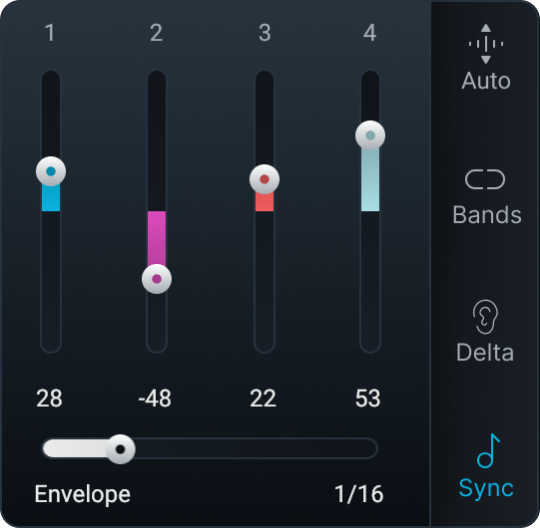
Adjusts the amount of expansion or compression applied to the microdynamics of the signal. Positive values will expand microdynamics for a more open, punchy sound, and negative values will compress microdynamics for a more dense, glued sound.
Note
These sliders can be scaled by the Amount control in the header. When scaled to less than 100%, the fill of the slider will be reduced to reflect this.
Envelope
Adjusts the amount of time for expansion or compression to return to baseline after a microdynamic event. This control can be set in milliseconds or beat divisions synced to the host tempo when Sync is enabled.
Auto-gain
When enabled, make-up gain is automatically calculated and applied to the output signal to compensate for level differences introduced by Impact processing. The automatic gain control calculates the RMS levels of the input and output signals independently for each Impact crossover band. Gain is automatically applied to the output signal based on the RMS level difference between the input and output signals. When disabled, the Impact gain traces will return to 0dB. When enabled, the “center of mass” of the Impact gain traces will remain at 0dB.
Link Bands
Enable to link Impact amount adjustments across all bands. When enabled and an Impact control is adjusted for one band, all other Impact controls will be adjusted by the same amount.
Delta
Monitors the difference in the signal before and after the Impact module.
Sync
Enable to set Envelope times with beat divisions synced to the host tempo.
Gain Traces
Displays a scrolling trace showing the microdynamic adjustment being applied to all active bands. When adjusting the Impact amount of a particular band, the other band’s gain traces will be dimmed to more easily view the changes you are making.