Referencing
Overview
Referencing in Ozone helps you compare and contrast audio in your DAW by allowing you to import up to 10 reference tracks, visualize differences in your music with overlaid spectrum metering, and quickly A/B your audio without leaving Ozone.

Click on the Reference button in the I/O panel to open the Reference panel. Enable reference track playback using the power button next to the Reference button. The Reference feature is only available in the Ozone mothership plug-in.
Importing References
Click on the “+” button in the middle of the empty Reference panel to select reference files.
Supported file formats: wav, aif/aiff, mp3, AAC, FLAC.
The Reference panel supports up to 10 reference tracks at a time.
Reference Track Tabs
Each tab represents an imported reference file. You can manage the reference track tabs using the following methods:
Add Tracks: Click on the + button to add a new reference track. (You can add up to 10 tracks at a time.)
Re-order Tabs: Click and drag track tabs to change their order.
Remove Tracks:
Right-click on a track tab and select Remove Track.
Click on a tab to select it, then click on the X button.
Reference Loop Segments and Playback Controls
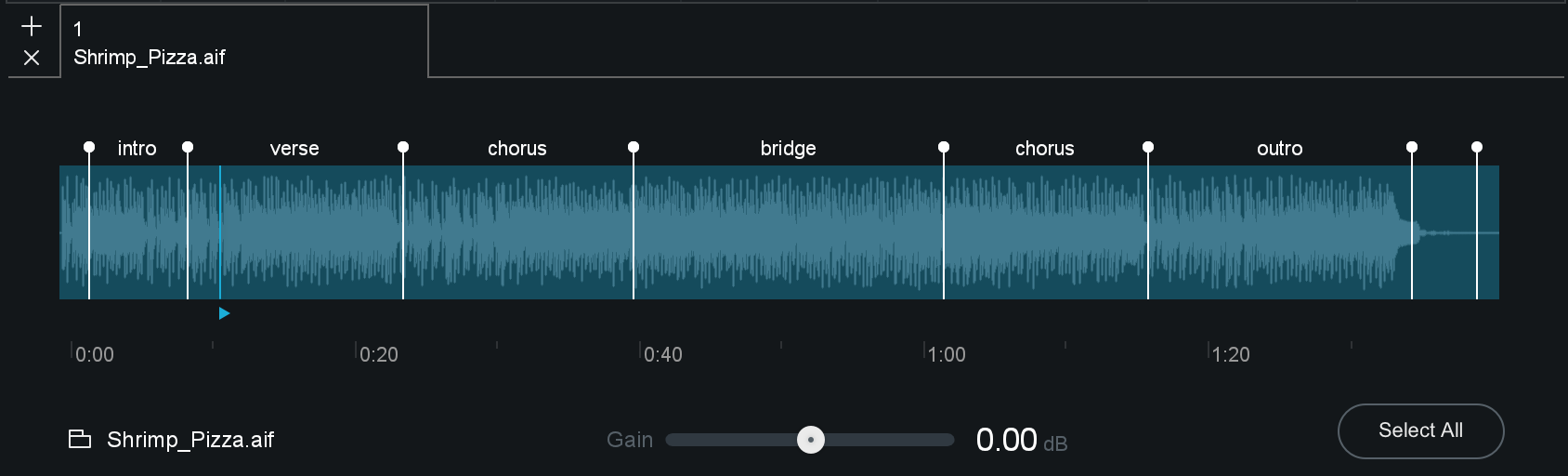
When tracks are initially loaded into the Reference panel, handles will appear overlaid on the waveform display. The handles represent boundaries of predetermined loop points. The loop boundaries are placed based on similar segments detected in the track. By default, the segments will be named with a letter (A/B/C/D/E).
 |
Managing Reference Loop Segments
You can customize, add, and remove loop segments:
Adjust loop segment length: Click and drag the Region Selector handles LEFT or RIGHT to adjust the length of a loop segment.
Rename loop segments: Click on the text above a loop segment to open an inline edit field. Enter the desired loop name and press the
EnterorReturnkey or click anywhere in the interface to save the loop segment name.Insert loop: Right-click on the waveform where you would like to add a new loop, select “Insert Loop” from the menu.
Remove loop: Right-click on a loop segment and select “Remove Loop” from the menu.
Select loop for playback: Click anywhere within a loop segment and press the spacebar to loop reference playback on a specific segment.
Note: The Reference power button in the I/O panel needs to be enabled in order to hear reference track playback.
Reference Playback Controls
Select All: Enable to loop the entire reference track.
Gain: Adjusts the output gain of reference track playback.
Reference Metering Options
The I/O options pop-up menu above the I/O meters contains metering options for Reference tracks.
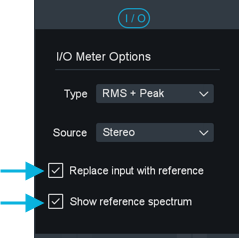 |
Replace Input with Reference: When enabled, the Ozone input meter will display the reference track level.
Show Reference Spectrum: When enabled, the Reference track spectrum will be displayed in the module spectrum meters alongside the spectrum meter of your current track.