Preset System
Overview
Ozone’s presets are designed to give you a quick starting point for mastering your projects. You can load, save, or customize presets with the preset manager. There are two types of preset manager windows in Ozone:
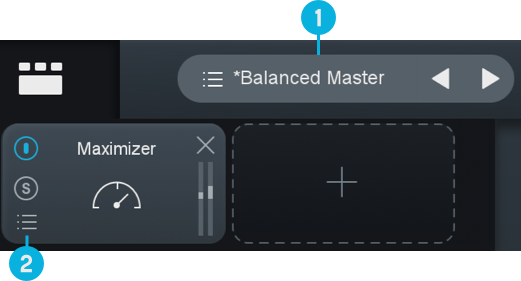 |
Global Preset Manager: Click on the preset name display bar in the header to open the global preset manager window.
Module Preset Manager: Click on the Presets button in a module’s signal chain tile to open the associated module preset manager window.
Factory and Custom Presets
The preset manager windows are divided into two tabs:
 |
iZotope: lists all factory presets installed with Ozone.
Custom: lists all custom presets you have saved or modified in Ozone.
Default and Working Settings
There are two common options that are always available at the top of the preset list in the iZotope and Custom tabs, named Working Settings and Default.
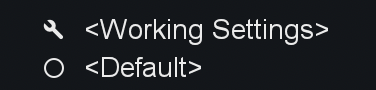 |
Working Settings: Loads your most recent changes that are not otherwise associated with a preset.
Default: Loads the factory default settings.
Custom Default Preset
You can override the factory <Default> preset by selecting any preset as your custom default.
Setting a Custom Default Preset
Right-click on the preset that you want to use as your default.
Select
Set <SelectedPresetName> as Defaultin the right-click context menu.After setting your custom default preset, selecting
<Default>in the preset manager window will load your custom default settings. New instances of Ozone will also use your custom default settings.
Reverting a Custom Default Preset
You can revert to the factory default preset by:
Open the preset manager.
Right-click on any preset in the list.
Select
Reset Default to factory defaultfrom the right-click context menu.
Custom Preset Names and Comments
You can modify preset file/folder names and preset comments when the Custom tab is selected.
Edit custom preset name: Double-click on a preset name to open an inline edit field. Press return to dismiss the inline edit field and save your changes.
Edit custom preset comment: The area below the preset list displays descriptive text about the currently selected preset. Single-click the comment text box to open an inline edit field, press return to save changes to the comment.
Note
Some characters such as * or / cannot be used as preset names. If you try to type these characters in the name they will be ignored.
Preset Manager Footer
The following buttons are located in the footer of the Preset Manager window:
 |
Delete: Deletes the currently selected custom preset or preset folder.
Update: Saves changes to a modified custom preset. Note: Update is only available in the global preset manager, you cannot update module presets.
Folder: Adds a new custom preset folder.
New: Creates a new preset based on the current settings.
Close: Dismiss the Preset Manager window.
Note
When you make changes to a preset an asterisk (*) will be shown at the beginning of the preset name to indicate that it has been modified. You can add a new preset to save your settings or update the preset to dismiss the dirty state indicator.
Note
In the Custom tab, you can click and drag presets or folders over other folders in the list to move them into that folder.
Preset Locations
Factory presets are installed to the following locations:
Windows:
C:\Program Files\iZotope\Ozone\Presets\Mac:
/Library/Application Support/iZotope/Ozone/Presets/
Custom presets are saved to the following default locations:
Windows:
C:\Users\Username\Documents\iZotope\Ozone\User Presets\Mac:
/Users/Username/Documents/iZotope/Ozone/User Presets/
If you have installed previous versions of Ozone 10 (prior to version 10.2.0) or any version of Ozone Pro, your custom presets will be stored in the following locations:
Windows:
C:\Users\Username\Documents\iZotope\Ozone Pro\Presets\Mac:
/Users/Username/Documents/iZotope/Ozone Pro/Presets/