Spectral Shaper
Overview
The Spectral Shaper can be used to apply high-resolution attenuation to problematic frequencies across the frequency spectrum with configurable time constants, timbre adjustment, and a variable full spectrum action region.
The Spectral Shaper interface includes the following sections:
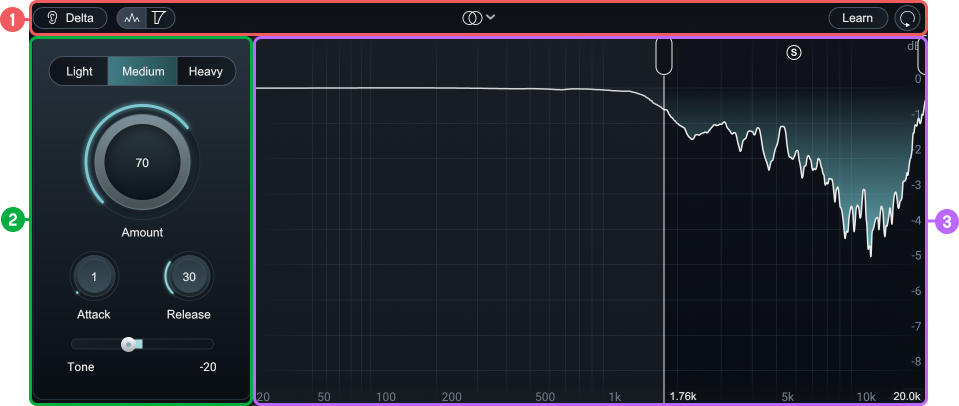 |
Module Header
The module header includes the following controls:
 |
Delta Monitors the difference in the signal before and after the Spectral Shaper module.
View Selector: See the Views section below for detailed descriptions of the meter views.
Channel Processing Modes: Selects the channel processing mode used by the Spectral Shaper.
The Spectral Shaper supports Stereo, Mid/Side, and Transient/Sustain.
See the General Controls chapter for more information.
Learn: Enables automatic action region cutoff point placement. When cutoffs have been set to their ideal positions, Learn will be automatically disabled.
Reset: Returns all module controls to their default values.
Controls
You can adjust the following controls in the Spectral Shaper:
Mode
Sets the intensity of reduction applied by the Spectral Shaper. Options include: Low, Medium, High.
Amount
Adjusts how much spectral gain reduction is applied to the action region.
Tone
Adjusts the spectral tilt of the Spectral Shaper processing. Positive values tilt towards a brighter overall spectral character, negative values tilt towards a darker overall spectral character.
Attack
Sets the amount of time it takes for the Spectral Shaper to apply gain reduction.
Release
Sets the amount of time it takes for the Spectral Shaper to stop applying gain reduction.
Views
You can toggle between the different views using the view selector buttons.
The Spectral Shaper module includes the following views:
Difference Meter and Action Region
Gain Reduction Trace
Difference Meter and Action Region
Allows you to adjust and audition the Spectral Shaper Action Region range. This view offers Action Region controls superimposed over a difference meter. This displays the spectral gain reduction processing that Spectral Shaper is applying. This is similar to an EQ where frequency is measured from left to right and gain is up and down.
The Action Region includes the following controls:
Action Region Range Cutoff Handles: Adjusts the low and high cutoff frequency values for the action region.
Click and drag a handle left or right to adjust the cutoff frequency.
Click in between both handles and drag left or right to move both handles together.
Single-click on the text readout next to the bottom of a handle, type in a new frequency value and press enter to set the handle to that value.
Action Region Solo: Solos the input signal to the Action Region before processing.
Gain Reduction Trace
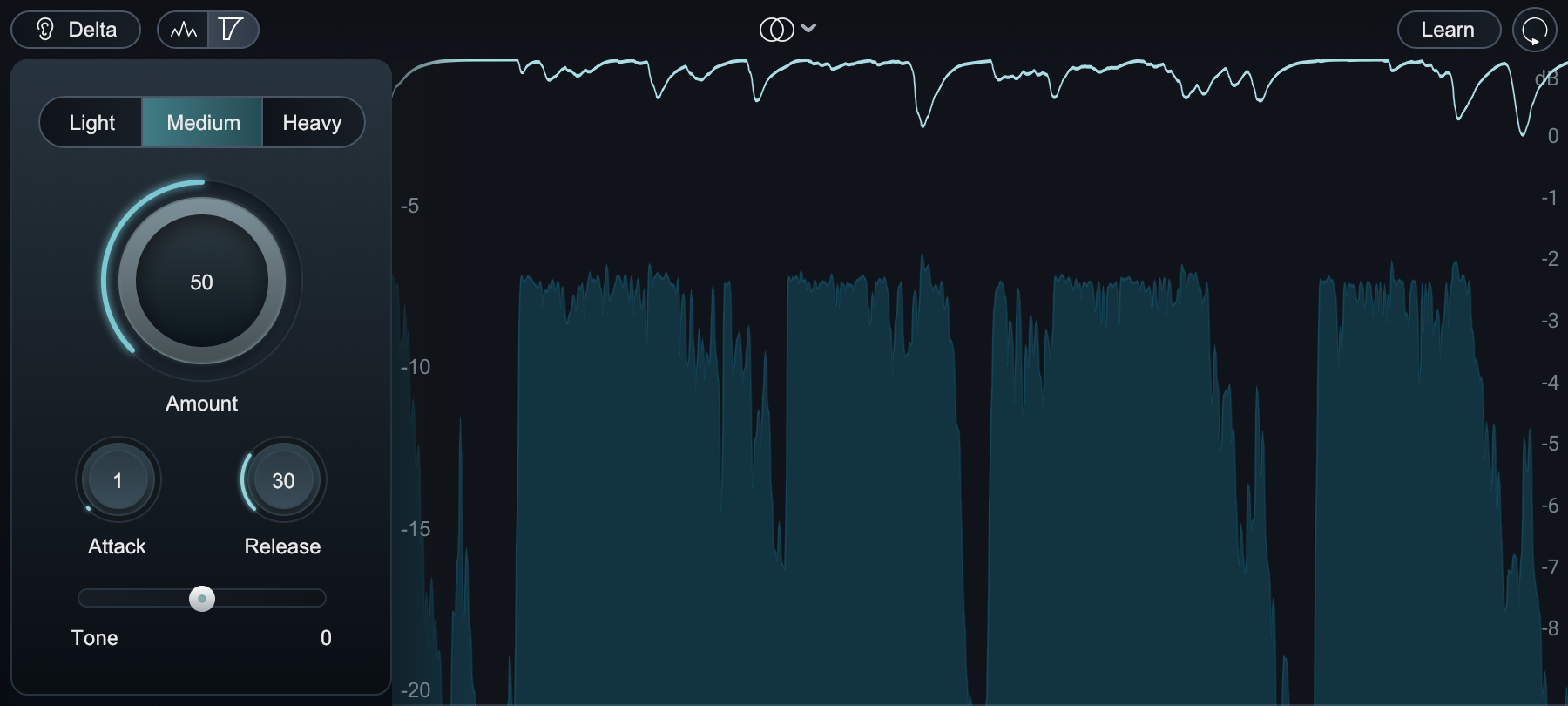
Displays a scrolling waveform with a superimposed trace reflecting the amount of gain reduction applied over time.
 |