Text Navigation
Table of Contents
Overview
Text Navigation converts speech into a transcription that is displayed above the spectrogram and shown in sync with the corresponding audio. Transcribed text is searchable and provides reference points for what is contained in the file. This eliminates the need to audition files in order to manually place markers.
Text Navigation Note
Text Navigation is designed to be an editing navigation tool and not a transcription service. It is optimized for American English. Accuracy may vary if there is noticeable background noise or a speaker has a non-American accent.
Workflow
To get started, drag or import audio into RX and click the Speech Recognition Word Lane button at the bottom left of the spectrogram.

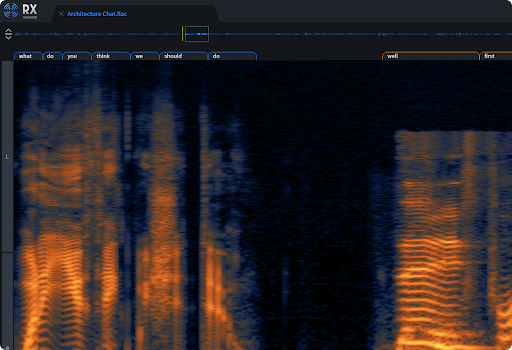
Audio transcription begins immediately and runs in the background at approximately 7 - 9X real time. The transcription populates the tabs in the Word Lane above the spectrogram, indicating the transcription is in process.
Audio Requirements
- Audio must be dialogue or speech – the transcription of musical lyrics is not currently supported
- Audio files must be at least 10 seconds long. The speech recognition button is disabled for files shorter than 10 seconds.
- Only American English is supported at this time
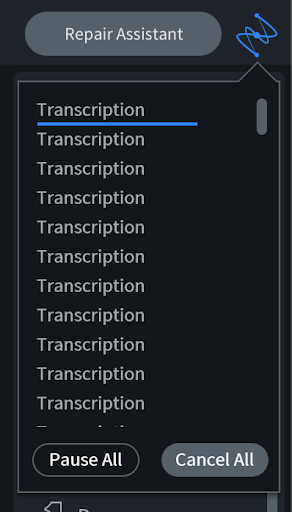
Clicking the iZotope logo opens a small window that shows the progress of the transcription. At the bottom of this window are buttons for pausing or canceling the transcription.
Once the transcription is finished, you can zoom in or out of the audio and the transcription expands or contracts accordingly.
- Mac: Command+= to zoom in, Command+- to zoom out, or swipe up or down with two fingers on a trackpad
- Windows: Ctrl+= to zoom in, Ctrl+- to zoom out
Click on a word tab to select the corresponding audio in the spectrogram. Drag the handles on either side of a tab to select surrounding words, a phrase, or a sentence.
When zoomed in close enough so there is a single word per tab, double-clicking on the word selects it and makes it editable. Type in a correction for a misspelled word or alter individual words to fit your editing needs.
Note
- When editing, typing multiple words in the tab does not split the tab up
- Typing nothing in the tab will not delete the tab
- Right-click the Word Lane to Rescan. (Rescanning will overwrite any corrections)
Search
Text Navigation includes a fuzzy search to find words and variants of words, such as misspellings in the transcript. You can also search for individual letters.
Search is ideal for finding a replacement word, navigating to a specific section, or locating an alternate take.
Searching three characters or less works like auto-complete, where the search looks for words that begin with those letters. Searching anything else works like a fuzzy search and will try to return results that are similar to the search query.
Click on the Text Navigation Pane button to bring up the search panel.

Note
The Word Lane button will also need to be enabled in order to see the transcription above the spectrogram.
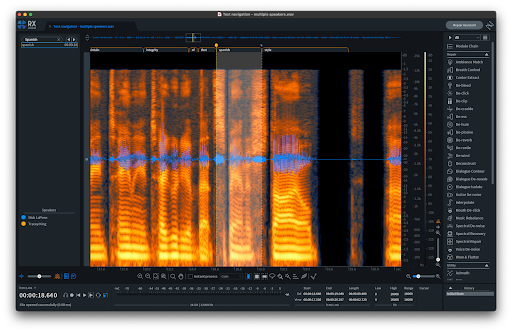
Type a word in the search box and hit return/enter. If the word is found, every instance of it will be listed in the order in which it appears in the audio. Variants of the word are also listed. If the word isn’t found, variants are listed only if they are identified in the audio.
Clicking on a word in the list moves the playhead to that word in the transcription and highlights the corresponding audio.
If you have a word that needs replacing, search for instances of that word, pick the best one, then copy it and paste it over the original.
Search can be used to target processing to a selected word. Dragging the handles on either side of the word targets processing to the selected audio.
Note
Search works with edited words, but typing more than a single word or phrase in a tab may negatively impact search results.
Multiple Speaker Detection
Built into Text Navigation is functionality that automatically detects when there is more than one speaker on a track and color codes the sections of speech associated with each speaker.
Multiple speaker detection runs after the text transcription pass has finished. Up to 8 speakers can be detected.
Each speaker receives a unique identifying color, which is indicated in the speaker pane and in the corresponding tabs of the transcription.
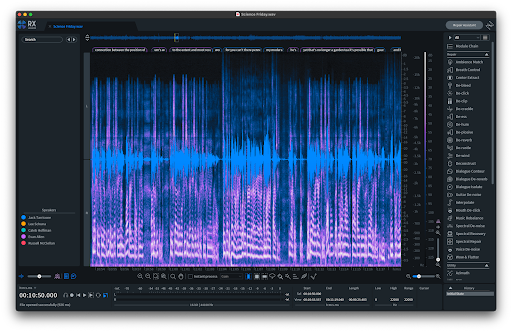
To select all instances of a speaker, click on the speaker name in the speaker pane. This makes it easy to target specific processing by speaker.
Double-click a speaker’s name to edit or change it to fit the particular needs of a project.