Elements
Table of Contents
Overview
Ozone 10 Elements is a great way to get started with Ozone 10 and iZotope’s system of assistive mixing and mastering tools. Master Assistant is designed to be your second set of AI-powered ears. It will analyze your track and offer an objective suggestion to help you achieve a professional-sounding master. For a beginner, this will hopefully give you the confidence to share your work with the world.
The Ozone 10 Master Assistant comes with a set of ten genre targets that have been derived from the latest chart-topping hits. When a target is selected, the assistant will match your song’s tonal balance and width to the average of those songs. You can also generate and save your own custom targets for Master Assistant based on reference song files on your computer. The new Master Assistant overview page provides powerful, high-level control over all of this matching so that you can dial-in the settings to your taste.
Workflow Steps
- Add Ozone 10 Elements to the Master channel or Stereo Output of your DAW.
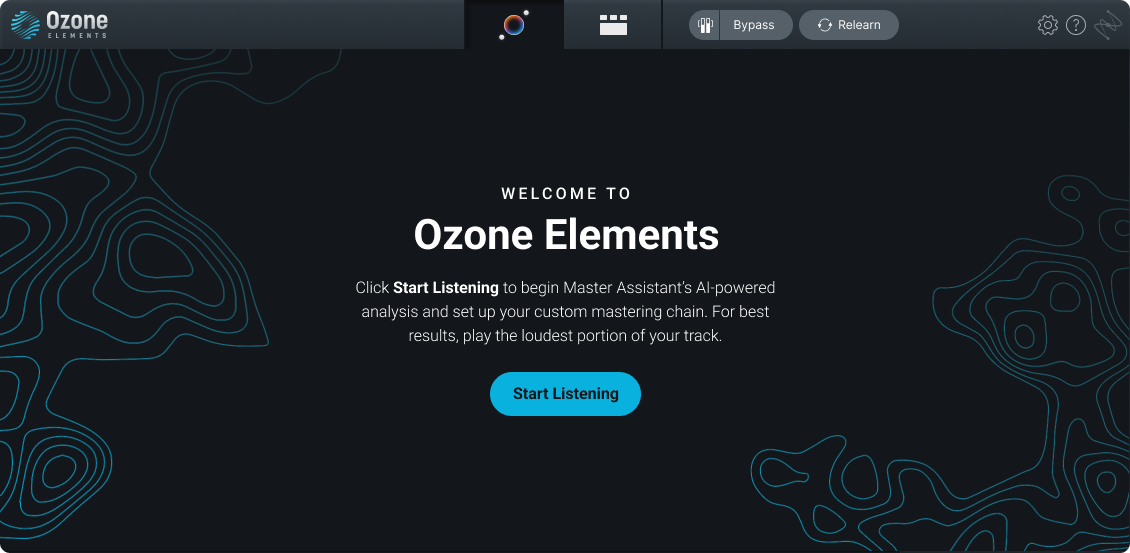
- Click the Start Listening Button in the welcome page to begin the analysis phase.
- Analysis: Master Assistant requires audio input to perform analysis and adjust settings.
- Playback your track for at least 8 seconds so that Master Assistant has enough time to analyze the input audio.
- Playback the loudest portion of your track to achieve the best results.
- Enable loop playback in your DAW if you are analyzing a selection that is less than 8 seconds long.
- After analyzing your song, Master Assistant will build a processing chain and switch to the Master Assistant controls view when the processing chain is built.
Master Assistant View
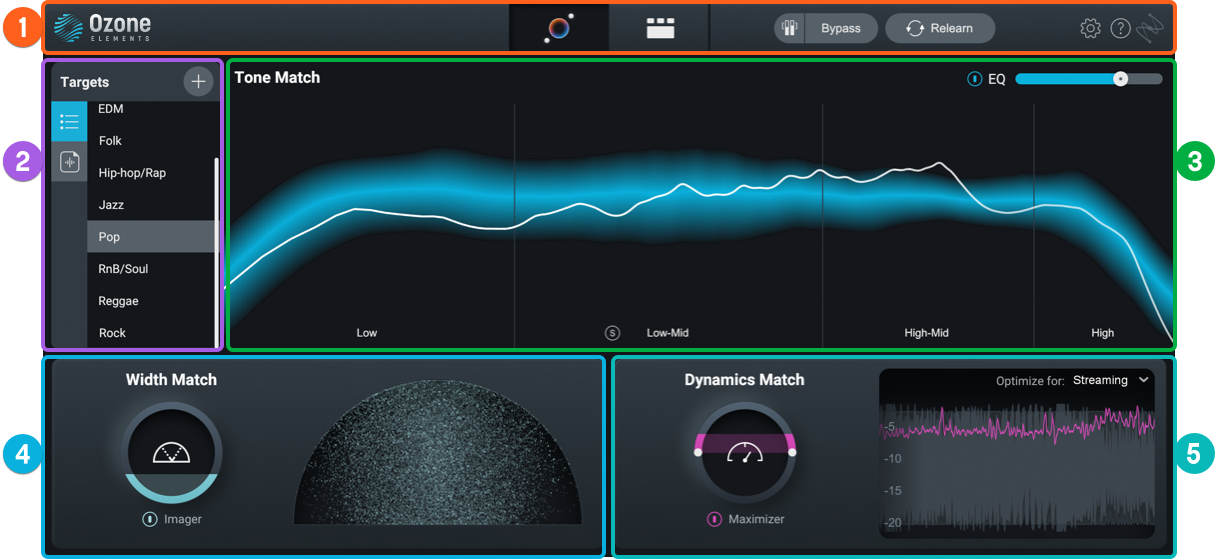
The Master Assistant View provides high-level controls and metering in the following sections:
Header

- Master Assistant Tab: If analysis has already been performed, selecting this tab will show the Master Assistant View.
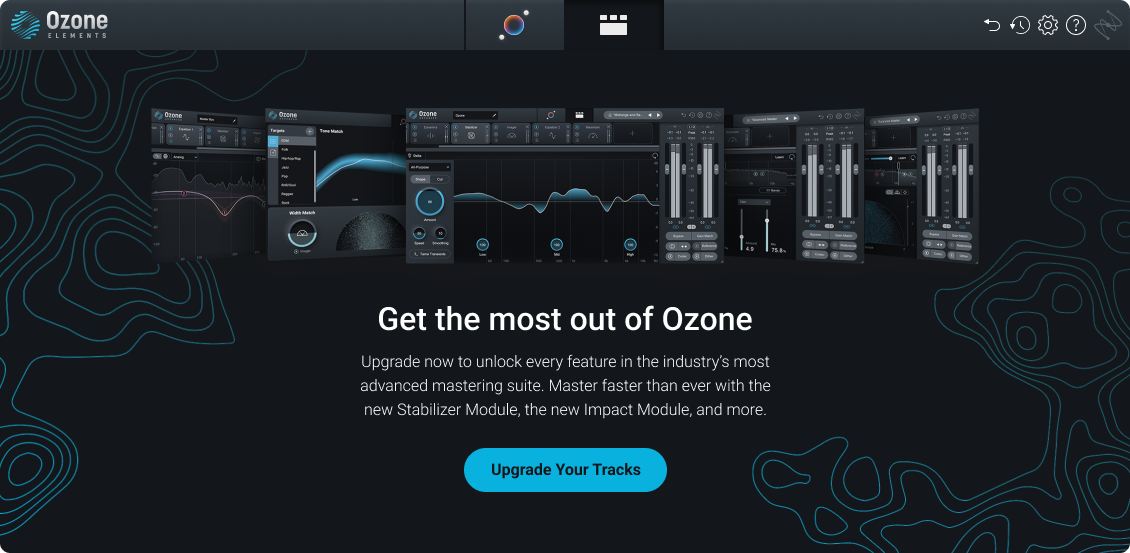
- Module View Tab: Shows the Upgrade View for Ozone Elements. In Ozone Standard and Advanced, this is where modules can be added and adjusted.
- Gain match: matches Ozone’s output level to the input level by automatically compensating for any gain changes introduced by the processing.
- Global Bypass: disables all Ozone processing.
- Relearn: launches the analysis phase and sets up new targeted processing for the newly-measured section.
- Settings: shows the Ozone settings menu.
- Help: opens a web browser with the Help Documentation.
Target Library
You can modify the overall target that the Master Assistant will work toward in the Target Library section. Changing the target selection will adjust all Master Assistant processing to work toward matching your track to the selected target. The factory target curves were generated through an analysis of chart-topping hit songs from a range of different genres. The Cinematic target was generated through an analysis of the scores of top box office films.
Each Target is comprised of sub-targets that are associated with different aspects of Master Assistant processing:
- Tonal Balance: the distribution of energy across the audible frequency spectrum.
- Stereo Width: the ratio of mid to side signal power in each band.
- Loudness: the integrated loudness measured in LUFS. The loudness for the factory genre targets are fixed at -10 LUFS, but loudness will be matched when targeting a reference file.
Targets from Reference files
You can create and manage your own custom reference targets by importing audio files from your computer.

- Plus button: opens a system dialog where you can select audio files on your computer to add to your custom Target Library. Adding or selecting a new reference file target will require a short analysis phase to build a new signal chain.
- Trash: deletes a selected reference file target.
Note
Master Assistant will analyze an uploaded reference file and learn the loudest eight seconds. The target will be generated from that loudest section of audio.
Tone Match
The Tone Match section has one control:
- EQ: scales the gain of all EQ nodes from 0%-100%.
- The Equalizer can also be enabled and disabled with the power button for quick comparisons. When Gain Match is enabled, any gain introduced by processing will be compensated when bypass is engaged.
The Tone Match section also features the Tonal Balance metering that will be familiar to users of our metering product, Tonal Balance Control. When a Target is selected, you will see this reflected in the blue tunnel. The white line represents your audio’s tonal balance. Increasing the EQ amount should result in your track aligning more closely with the Target tonal balance.
Width Match
To perform a width match, the Master Assistant will analyze the balance of mid and side information in your audio across four separate bands. It will then use the Imager module to adjust the side channel to match the selected target. Note that Master Assistant may enable Recover Sides at different amounts based on the selected Target. It will not enable Stereoize. If the low frequency band of the analyzed audio is sufficiently narrow, Master Assistant will not attempt to widen the bass to match a selected target.
The Width match section has one control for the amount of Imager processing that is applied:
- Imager: scales all of the per-band Width amounts from 0% to 100%. This control maps directly to the
global amount in the upper right corner of the Imager module.
- The Imager module can also be enabled and disabled with the power button for quick comparisons. When Gain Match is enabled, any gain changes will be compensated during this bypass.
This section also includes the Polar Sample Vectorscope to visualize the stereo width of your audio.
Dynamics Match
The Master Assistant will measure integrated loudness during the analysis phase and set the Maximizer threshold to hit a target loudness. The Dynamics Match section has one control and a destination selector:
- Maximizer: adjusts the Threshold of the Maximizer +/- 4 dB.
- The Maximizer module can also be enabled and disabled with the power button for quick comparisons. When Gain Match is enabled, any gain changes will be compensated during this bypass.
The Master Assistant will optimize your audio’s loudness and output level for two destinations:
- Streaming: this is intended for audio that will be played back with lossy encoding and loudness normalization, as is typical of most streaming services. For these reasons, the output level is set to -1 dB with True Peak limiting enabled. If a genre target is selected, the Master Assistant will set the middle of the Maximizer slider to -10 LUFS. If a reference file target is selected, the Master Assistant will set the middle of the Maximizer slider to the integrated loudness of the loudest 8 seconds of the reference.
- DJ Player: this is intended for audio that will be played back as a lossless file that is not loudness normalized, as is typical of DJ’s playing at clubs and festivals. The output ceiling will be set just shy of full level at -0.1 dB with True Peak limiting disabled. The loudness will be increased by shifting the range of the Maximizer slider up 2 dB from the Streaming range.
This section also features a scrolling waveform and gain trace that will meter how much gain reduction is being applied by the Maximizer. This is useful to dial in exactly how much limiting is taking place when adjusting the Maximizer slider
Upgrade View
Ozone 10 Elements is designed to be an introduction to iZotope’s assistive mixing and mastering tools. It can easily help you achieve a professional-quality master with your personal taste, but it does not include all of the powerful controls and customization options that are available in Ozone 10 Standard and Advanced. Both of these products are available with free trials, so if you’re interested in unlocking the full potential of Ozone 10, you can click the Upgrade Your Tracks button to learn more.