Repair Assistant
Table of Contents
Overview
Repair Assistant is designed to detect common audio problems in a recording and quickly provide suggested settings for removing them. Repair Assistant is available in the RX Audio Editor as a module and as a plug-in.
Repair Assistant Module
To open Repair Assistant in the RX Audio Editor application, simply click the Repair Assistant button in the upper right-hand corner of the RX Audio Editor window.
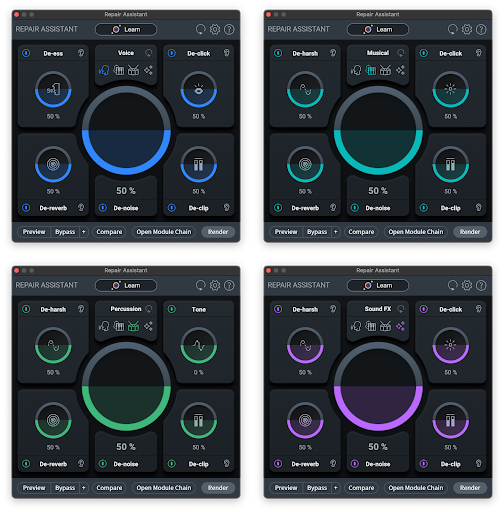
After opening the module, choose your Source Type. This affects the type of processing chains generated and is used in analysis to measure noise amounts and determine processing chain components and settings. The options are Voice, Musical, Percussion, and Sound FX.
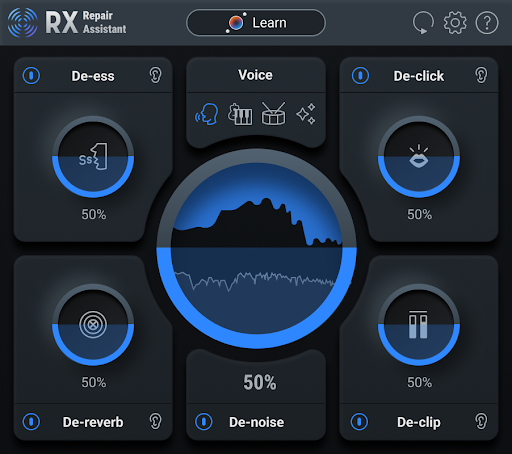
Next, click Learn to analyze your audio. Repair Assistant is designed to be trained on audio that contains dialogue/music/SFX. It’s not necessary to learn on noise-only segments of audio, which you may be accustomed to doing in other modules like Spectral De-noise. Repair Assistant analyzes any selection you have made in the Spectrogram (if no selection is made it will analyze your entire track) and automatically adjust the settings for optimal repair of your audio. After analysis is complete, you are able to adjust the effect of each module using a single gauge. Each module has a Power button which will bypass that module when deactivated, and an Ear button which allows you to hear only the elements that are being removed by that module.
To apply Repair Assistant’s recommended processing to the current selection, select the processing option in the Repair Assistant window and click the Render button in the bottom right-hand corner of the window.
The “Open as Module Chain” feature allows you to save Repair Assistant’s recommendations as a Module Chain preset, or make changes to the generated settings before rendering. To open Repair Assistant’s recommendations in the Module Chain, click the Open as Module Chain button in the Repair Assistant footer area. (This feature is available in RX 10 Advanced only).

Repair Assistant Plug-in
The experience in the Repair Assistant Plug-in is very similar to that of the Audio Editor, but the plug-in analyzes your audio as you play audio, as opposed to analyzing the entire file/selection.
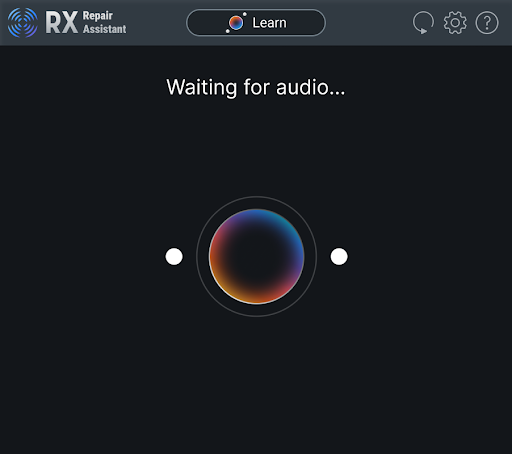
To use the plug-in, simply choose your Source Type, click Learn, and play your track. Keep playing it until Repair Assistant has finished listening to your audio and creating a suggestion.
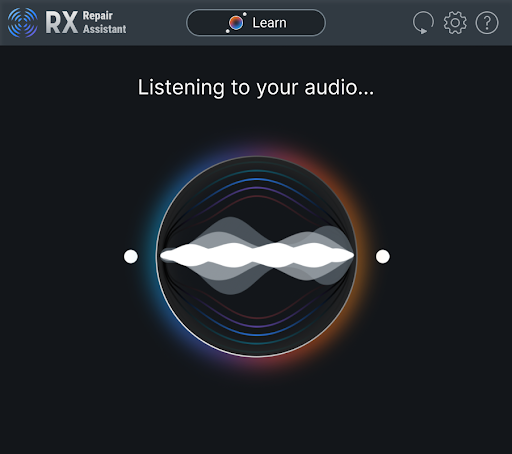
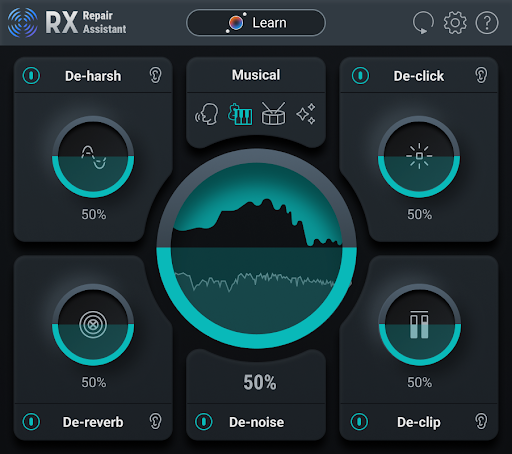
After analysis is complete, you are able to adjust the effect of each module using a single gauge. Each module has a Power button which will bypass that module when deactivated, and an Ear button which allows you to hear only the elements that are being removed by that module.
Clip Length Note
Clips must be longer than 7 seconds. When using Repair Assistant in AudioSuite or as an AAX and learning a clip less than 7 seconds long, the plug-in will “Learn” indefinitely and appear to hang in this state.
Repair Assistant Preferences
To bypass analysis by any of the Repair Assistant modules, click on the gear button in the upper right-hand corner of the Repair Assistant window to open the Assistant Preferences. All modules are selected by default, and deselecting any module will remove it from Repair Assistant’s analysis.
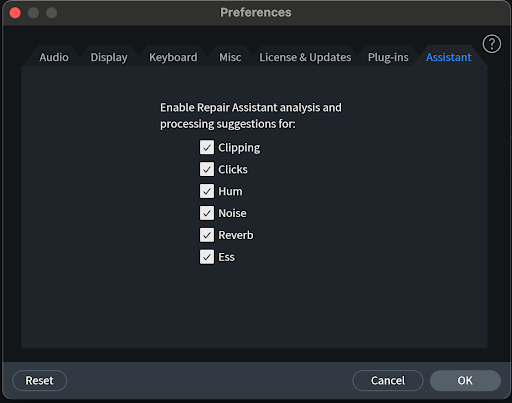
These preferences apply only to Repair Assistant in the RX 10 Audio Editor application, not the plug-in. For more information about the RX Preferences menu, see the Preferences chapter.